Searching
In order to locate a specific document within a brief, you may use either a Quick or Advanced search.
Quick Search
When you are in the Brief Manager screen (and have selected a brief), you will notice a "Find document" bar in the top right of the screen.

To quickly find a document in any of the folders in the currently selected brieft, simply type a few characters of the name of the document you are looking for.
The search is case insensitive, and will attempt to locate what you type in any part of the document name. For example, if you type tes in the Find document bar, the system will match that term in any word in the document name:
- Testing
- A tested file
- I can attest to this
- Summary of rates
In addition to this, the Quick Search function allows you to specify a document status and privilege when performing a search. Searching for tes will locate any documents containing tes in the name (as per the example above), while using tes and draft will only match documents that contain tes in the name and have a Draft status.
Advanced Search
In order to refine your search with more detail, click the Search button in the toolbar when you have selected a Brief or folder within a Brief.

You will be taken to the Search screen which allows you to enter any number of criteria to search for. You can enter one or more fields. The more fields you fill out, the more specific the search will be.
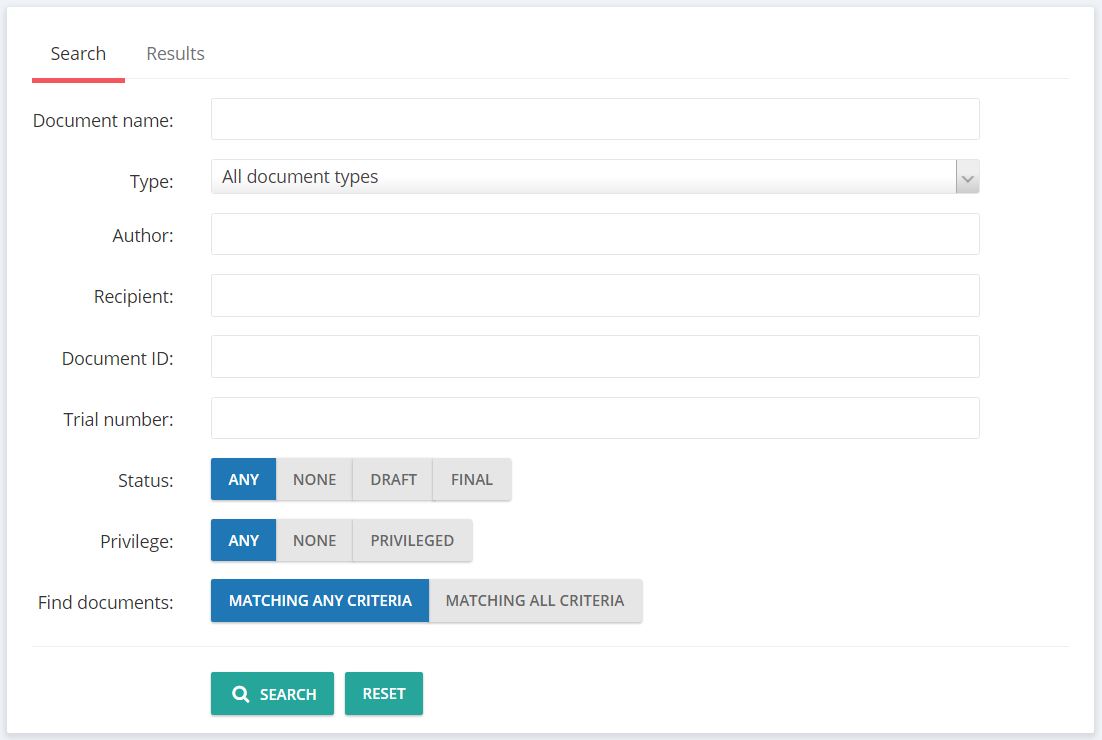
When you click the Search button, any matching results will be displayed on screen.
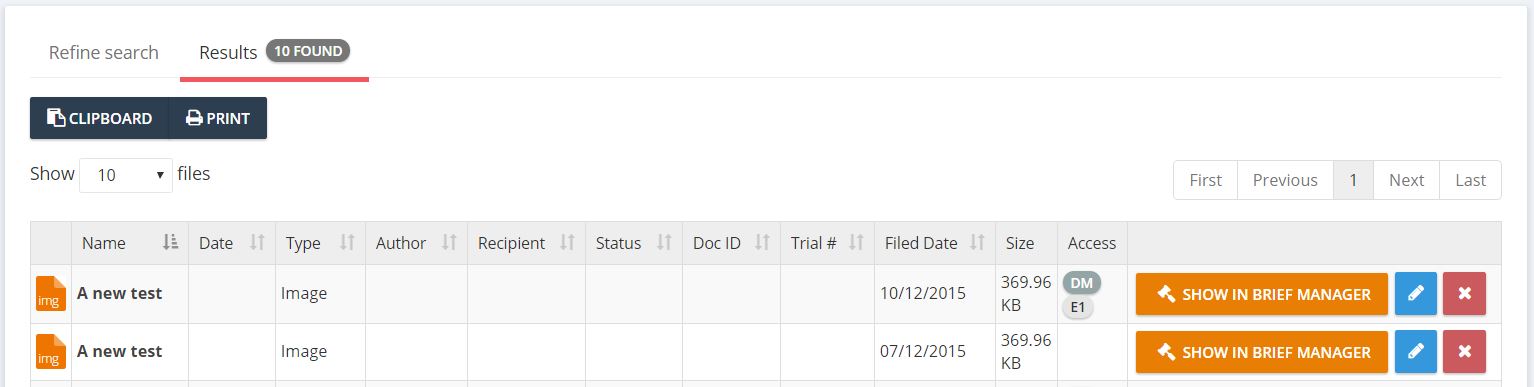
From this list you can Edit or Delete the document, or navigate to the location of the document in the Brief Manager by clicking the orange Show in Brief Manager button. You may also copy the list of found documents to the clipboard (for pasting into other documents), or print the list by using the buttons just above the main list.